

If you have been searching the Google Play Store for All Game Arena (AGA) and coming up empty, you are not doing anything wrong. Because AGA handles real-money sweepstakes wallets, the app is distributed as an APK straight from its official website instead of the Play Store. So this guide walks you through every step to safely download AGA on Android, turn on the right security permissions, and install AGA on your Android phone in under two minutes.
Using an iPhone or iPad instead? AGA works differently on Apple devices, and there is no APK file for iPhone and nothing to sideload. So skip this guide and follow our native AGA iOS Web App Guide for the quick Safari setup method instead.
Quick Answer: First, open Chrome and visit allgamearena.com. Next, tap Download for Android. Then open the downloaded APK file, tap Settings on the security prompt, and turn on Allow from this source for your browser. Finally, tap back, tap Install, open the app, and register your account in under a minute.
Crucial Security Rule: Only ever download files from the verified domain allgamearena.com. Any file claiming to be a “modded AGA APK” or promising “free unlimited credits” is a malicious scam designed to compromise your funds.
What Is All Game Arena (AGA)?
All Game Arena (AGA) is a self-serve gaming wallet and central launch portal built for sweepstakes players. Instead of running separate cash transactions with unverified Facebook or Telegram agents for every platform you play, AGA gives you one unified dashboard. So you load funds into a single master wallet and route credits straight into your chosen game in seconds, with no middlemen, no waiting, and no endless DMs.
How Does AGA Work in Practice?
Think of AGA as the bank, not the casino. First, you keep one master balance in your AGA wallet. Then, when you want to play games like Juwa or Fire Kirin, AGA hands you a secure login for that platform and pushes your credits into it. CiderLuck is played directly inside the AGA app. Supported third-party games, such as Juwa and Fire Kirin, are played on their own platforms, while AGA manages their game credentials, loads, and redeems.
Key Things To Know Before You Install AGA on Android
- AGA is a payment gateway, not a game operator. It does not host titles like Juwa or Fire Kirin. Instead, it handles your secure wallet balances, automated top-ups, and payout distributions for those external platforms.
- Account details in one place. View your balance and use the Home screen shortcuts for wallet top-ups, game top-ups, and withdrawals.
- 24/7 self-serve withdrawals. You can submit cash-out requests any time of day or night.
- 5,000+ players use AGA.
Supported Games in All Game Arena (AGA)
AGA supports CashFrenzy, Dragon Fury, Juwa, Juwa 2.0 (Agent Version), LasVegas Sweep, VBlink, GameVault, Milkyway, Orion Stars and FireKirin.
AGA also includes CiderLuck, VIP deposit bonuses and weekly cashback, happy hours, daily streaks and a first-deposit bonus. Check Top Players, events and referral giveaways in the app for current rules and eligibility. Use Activity to track orders, enable push notifications and reminders, and switch between English and Spanish.
Why Can’t I Find the AGA App on the Google Play Store?
Because AGA runs an independent real-money sweepstakes wallet ecosystem, it falls outside Google Play’s standard distribution guidelines. This is the same reason the game platforms it funds, like Juwa and Fire Kirin, also distribute their apps as direct APK downloads. So AGA is distributed only through its official portal at allgamearena.com.
Sideloading this package is completely normal and safe, as long as you pull it from the official source. AGA also runs entirely over HTTPS, which means it is encrypted end-to-end, and it uses sandboxed credentials. As a result, each game login is isolated, and your master password is never exposed to individual game software.
Before You Start: Android Requirements
| Requirement | Minimum |
|---|---|
| Android OS | Android 7.0 (Nougat) or higher |
| Free Storage | At least 100 MB |
| Browser | Google Chrome or any browser |
| Connection | Wi-Fi recommended |
Tip: Use a stable internet connection and let the APK finish downloading before opening it.
How to Download AGA on Android
To download the AGA APK on your Android device, just follow the steps given below.
Watch the full AGA Android install walkthrough
Download Step 1: Open Your Browser and Visit the Official Site
First, launch Google Chrome or Samsung Internet on your Android device. Then navigate to the official AGA website at allgamearena.com.
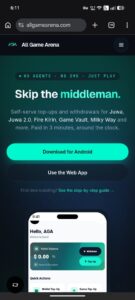
Download Step 2: Tap the “Download for Android” Button
On the homepage, tap the Download for Android button. Your browser then begins downloading AllGameArena.apk (79.9 MB).
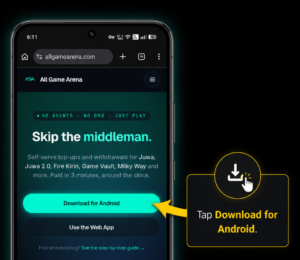
Tap the “Download for Android” button on the official allgamearena.com homepage.
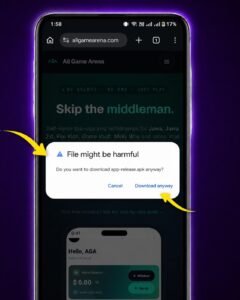
Download Step 3: Tap the “Download Anyway” Button
Next, Chrome shows a native popup that says, “File might be harmful. Do you want to download AllGameArena.apk anyway?” Do not worry, because this is an automated security warning that triggers for every Android app downloaded outside the Play Store. So just tap Download anyway to save the authentic installer file.
How to Install AGA on Android Phone
After you download AGA on Android, follow the steps below to install AGA on your Android device.
Step 1: Tap the Downloaded APK File
First, access the file by tapping Open in your browser’s download notification, or find it in your Files / Downloads app. Android then shows a security prompt:
“For your security, your phone is not allowed to install unknown apps from this source.”
This is standard Android behavior that stops background scripts from auto-installing random apps, and it appears for every app installed outside the Play Store, not just AGA. So tap Settings to open the security panel.
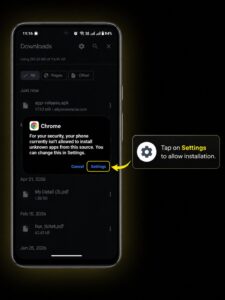
Step 2: Enable “Install Unknown Apps” for Your Browser
Inside the panel that appears, toggle “Allow from this source” to the ON position, as shown in green below.
If the automatic prompt did not appear, find the setting manually based on your device:
- Samsung One UI: Settings → Apps → three-dot menu (top-right) → Special access → Install unknown apps
- Xiaomi MIUI / HyperOS: Settings → Protection & Privacy → Special permissions → Install unknown apps
- Google Pixel: Settings → Apps → Special app access → Install unknown apps
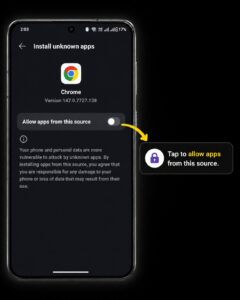
On Android 13, 14, 15, or 16? If this toggle is greyed out, read this. Newer Android versions add a “Restricted Settings” block that can stop the “Allow from this source” toggle from turning on for APKs downloaded through a browser. So if your toggle is greyed out, or you see a “Restricted setting” message, here is the fix:
- Go to Settings → Apps → AGA (or your browser, such as Chrome).
- Tap the three-dot menu in the top-right corner.
- Tap “Allow restricted settings.”
- Return here and toggle “Allow from this source” on. It will now stick.
This is a one-time Google safeguard, not an AGA issue, and it shows up for every sideloaded app on modern Android.
Note: Once AGA is installed, you can safely turn this toggle back off. The app keeps running fine without this permission staying active.
Step 3: Tap Back and Confirm the Install
After you enable the toggle, tap the back button. Android then returns you to the APK installer screen. Now tap Install.
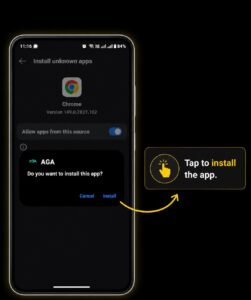
Step 4: Wait for Installation to Complete
The installation takes just a few seconds. Once it is done, you will see an “App installed” confirmation, and the AGA icon will appear in your app drawer.
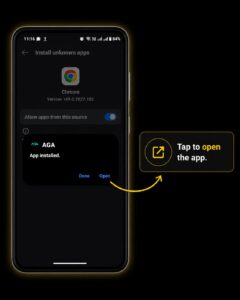
Step 5: Open AGA and Create Your Account
Finally, tap Open to launch the app. You will then land on the registration screen, ready to set up your account.
How to Create Your AGA Account
After you download and install AGA on Android, you must register before you can play. Registration takes under a minute. So fill in your details accurately, because your full name in particular is used for identity verification during withdrawals. Make sure it matches your payment account.
Here is what each field needs:
- Full Name: Must match the name on your Cash App, Chime or card payout account.
- Username: This becomes your AGA handle.
- Password and Confirm Password: Use a strong, unique password, and make sure both fields match exactly.
- Email Address: Used for receipts, resets, and support.
- Mobile Phone: Used for recovery and notifications.
- Referral Code: Optional. After the referred player makes their first deposit, both players receive a bonus in their AGA wallets as play-only credit. Check the app for the current amount.
- Terms & Privacy Policy: Tick the box to confirm.
Once everything is filled in, tap Create Account, and you are in.
Important: Referral codes can only be entered at registration, and they cannot be added afterward. So if someone gave you a code, enter it here before you tap Create Account.
What’s Inside the AGA App
After you install AGA on Android and log in, the “Home” screen becomes your command center:
- Wallet Balance card: Your USD balance with a privacy toggle, plus Withdraw and Top-Up buttons.
- Quick Actions grid: Six shortcuts, including Wallet Top-Up, Game Top-Up, Withdraw, Support, Promo Code, and Refer & Earn.
- Games tab: Browse supported titles and request login credentials for any game with one tap.
- Announcements feed: Where official promo codes and limited-time referral boost events are posted.
- In-app chat: Open Support for an AI assistant first, with a handoff to staff when needed. Email support@allgamearena.com is also available.
Looking for an “AGA iOS APK”? Read This First
A surprising number of people search for an AGA APK for iPhone, so let us clear it up. APK files only run on Android. iPhones and iPads cannot install APKs at all, because iOS uses a completely different system.
The good news is that using AGA on iOS is even simpler than downloading and installing AGA on Android. There is no file to download and no permissions to enable. Instead, you install the official web app straight from Safari in four taps. So just follow our AGA iOS install guide for iPhone & iPad for the full walkthrough.
Warning: Avoid “AGA Mod APK” and “Free Credits” Downloads
If you search for AGA on Google, you will eventually run into sites or Telegram channels offering a “modded AGA APK,” an “AGA hack,” or a “free unlimited credits” version. Every single one of these is fake.
AGA’s wallet balances live on its servers, not inside the app file, so there is nothing like a “modified APK” that could unlock them. What these files can do, however, is steal your login credentials, harvest your payment details, or install malware on your phone. So the only safe download is the official AGA APK from allgamearena.com, and the only real promo codes are the ones posted in the in-app “Announcements” feed.
Troubleshooting Common Android Install Issues
Download Problems
Download starts but stops midway: First, toggle “Flight Mode” on for 10 seconds and then back off to flush your DNS cache. After that, clear your browser history and start the download again.
Tapped the APK, but nothing happens: Go to Files → Downloads, delete the existing file, and then download a fresh copy. If it still will not open, restart your phone first.
Install Problems
The install button is greyed out or shows a “Restricted setting” message (Android 13 to 16): Modern Android blocks the install-permission toggle for browser-downloaded APKs until you clear it manually. So go to Settings → Apps → AGA (or your browser), tap the three-dot menu in the top-right, and tap “Allow restricted settings.” Then return and enable the permission. You can also see the boxed walkthrough in Step 2 above.
“App not installed” error: This usually means the APK got corrupted mid-download, or your phone is low on storage. So free up at least 100 MB, delete the old file, and download it again over a stable Wi-Fi connection.
“There was a problem parsing the package”: Either your device runs a version of Android older than 7.0, or the file did not finish downloading. First check your Android version in Settings → About Phone, then download the file again.
The “Install from Unknown Sources” option is missing: Make sure you are looking in the settings for your specific browser, such as Chrome or Samsung Internet, rather than a general toggle. On newer Android versions, this permission is per-app, not global.
Play Protect Warnings
Google Play Protect shows a warning: This is expected for any app installed outside the Play Store. The cleanest fix is to tap More details → Install anyway on the warning popup. If the install is still blocked, you can temporarily turn off scanning (Play Store → profile icon → Play Protect → Settings gear → toggle off “Scan apps with Play Protect”), install AGA, and then turn the toggle straight back on. Do not leave Play Protect off permanently, because it protects every other app on your phone.
Is It Safe to Install AGA on Android Outside the Play Store?
Yes, but only if you always download AGA from the official website of All Game Arena. AGA uses strict HTTPS encryption on all communications, along with sandboxed game credentials. As a result, a security issue on an external game server cannot reach your central wallet.
Because the app installs outside the Play Store, your safety depends on the source. So three simple rules cover it:
- Only download from the official site: No Telegram files, no YouTube links, and no mirror sites.
- Never share your password: Do not give it to anyone claiming to be an agent, because AGA is fully self-serve, so no legitimate person will ever ask for it.
- Use a long, unique password: Pick one you do not use anywhere else, since this account holds real money.
Frequently Asked Questions
Where should I download the AGA Android app?
Use the Android download link on allgamearena.com. Download the APK directly from AGA, then follow the installation steps above. Avoid modified APKs from third-party sites.
What payment options and minimums does AGA support?
Deposit with Cash App, Chime, Apple Pay, Google Pay or card. Withdrawals support Cash App, Chime and your card. Check the app for the minimum shown for your selected method.
How fast are deposits and withdrawals?
Deposits are typically credited in under 3 minutes. Automatic game loads usually complete in 30 seconds or less, and automatic redeems return game funds to your AGA wallet. Verification or network delays can take longer. You can request a withdrawal any time; processing depends on your payout method and required checks. Follow orders in Activity.
How do I update the AGA app on Android?
Updates are simple. When an update is announced, just return to allgamearena.com, download the newest AGA APK, and install it right over your current app. Your wallet balances, game credentials, and login history live on remote servers, so they carry over automatically.
Can I use AGA on iPhone or a tablet?
Yes. The same account works across iPhones, Android tablets, and as many devices as you like. iPhones do not use APKs, though, so follow our AGA iOS web app guide for the Safari install method.
Final Thoughts
It is very simple to download and install AGA on Android. First, grab the file from allgamearena.com. Then allow your browser to install from unknown sources, tap install, and you are inside the app within two minutes. After that, one master wallet covers every supported game, including Juwa, Fire Kirin, Game Vault, Milky Way, and Orion Stars, with 24/7 self-serve top-ups and withdrawals and no agents anywhere in the process.
So if you are ready to stop waiting on agents and take control of your winnings, head to allgamearena.com and get set up now. On iPhone instead? Then start with the AGA iOS install guide.
A note on responsible play: These are real-money sweepstakes games. So set a budget before you start, never chase losses, and treat your wallet balance as money you have already spent on entertainment.