
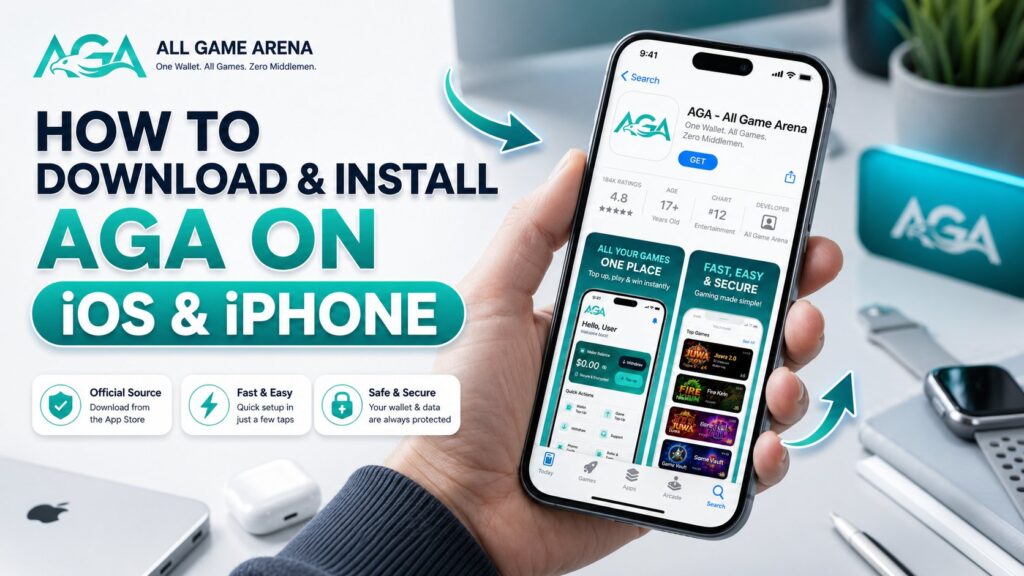
If you’ve been searching the Apple App Store to download AGA on iOS, you can stop looking. It isn’t there, and that is entirely by design.
All Game Arena does not offer a native iPhone or iPad application. Instead, the official method to install AGA on iOS is through a high-performance progressive web app (PWA). It sets up directly from Safari to your home screen, requiring no App Store downloads, no complex developer certificate trust steps, and no device restarts. It looks, feels, and functions exactly like a native app, and the entire configuration takes less than 60 seconds. If you are an Android user and want to install AGA on Android, then look at this article.
Quick Answer: To download AGA on iOS and complete the installation, launch Safari on your Apple device and navigate to app.allgamearena.com. Tap the Share button (the square icon with an upward arrow), scroll down to select Add to Home Screen, and tap Add. The official AGA app icon will instantly pin to your home screen, launching full-screen without standard browser bars.
Is There an AGA iOS App on the Apple App Store?
No. As of 2026, there is no official native AGA iOS app listed on the Apple App Store. So, there is no way you can download AGA on iOS. Any application claiming to be the official platform on the App Store is a counterfeit and should be avoided to protect your wallet and personal data.
AGA operates a real-money sweepstakes wallet, a business model that faces strict, frequently changing restrictions under Apple’s standard App Store guidelines. To circumvent these distribution bottlenecks, AGA engineered its iOS ecosystem on a modern PWA framework. This web app is the official, fully supported AGA iOS experience, not a temporary workaround or an inferior fallback.
When you decide to install AGA on iOS via a PWA, you get several distinct advantages:
- No Sideloading Risks: Unlike traditional sweepstakes apps that require enterprise certificates or profile modifications in your iOS Settings, the AGA PWA requires zero administrative permissions.
- No Expired Certificates: You never have to worry about Apple revoking a certificate and breaking your application overnight.
- Zero Overhead: All maintenance and operations run natively through Safari’s secure web kit.
Requirements Before You Download and Install AGA on iOS
Before you begin, make sure you meet these simple requirements to download the game on your iPhone:
| Requirement | Details |
|---|---|
| Device | Any iPhone or iPad running iOS 13 or later (iPhone 6S and newer) |
| Browser | Safari only – Apple only allows Safari to install web apps to the home screen |
| Storage | Minimal -PWAs take up almost no space |
| Connection | Wi-Fi or mobile data |
⚠️ Important: This Only Works in Safari
You must use the native Safari browser to successfully install AGA on iOS. Attempting this workflow through alternative browsers like Google Chrome, Mozilla Firefox, or Microsoft Edge is the primary reason why installation configurations fail.
Apple restricts third-party iOS browsers from executing full-screen PWA configurations. If you use Chrome, the “Add to Home Screen” option will either be completely hidden or will merely generate a basic webpage shortcut that opens inside a cluttered browser tab rather than an immersive, full-screen app.
How to Install AGA on iOS (Step-by-Step Guide)
Follow this refined, step-by-step walkthrough to download AGA on iOS and pin the official platform directly to your Apple device.
Watch the full AGA iOS install walkthrough
Step 1: Open Safari
Open your iPhone or iPad’s native Safari browser and visit the official endpoint of All Game Arena. Always double-check the URL string to ensure you are interacting with the secure, official AGA web application.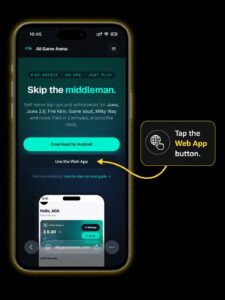
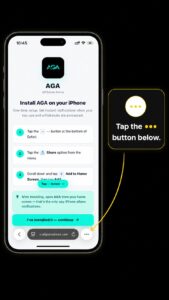
Step 2: Tap the ••• (Three-Dots) Button
At the bottom of the Safari screen, tap the ••• (three-dots) button. On the latest version of Safari, this is the menu that holds the Share option and the rest of the page tools.
- On iPhone, the ••• button is at the bottom-right of the Safari toolbar.
- On iPad, tap the ••• button in the top-right corner, next to the address bar.
(On older versions of iOS, you may see the Share button – the square with an arrow pointing up – directly in the toolbar instead. If so, tap that and skip to Step 4.)
Step 3: Tap the Share Button
Look for the square with an arrow pointing up.
- On iPhone, you’ll find it at the bottom of the Safari screen.
- On iPad, it’s in the top-right corner, next to the address bar.
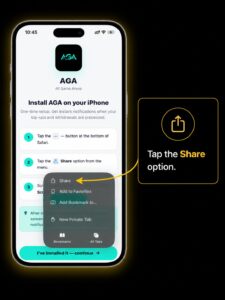
Safari Share button location for installing the AGA iOS app on iPhone
Step 4: Scroll Down and Tap “Add to Home Screen”
In the share sheet, scroll until you see “Add to Home Screen” and tap it. A confirmation screen appears with the AGA icon and name. Tap Add in the top-right corner.
That’s it – the AGA iOS app now lives on your home screen like any other app.
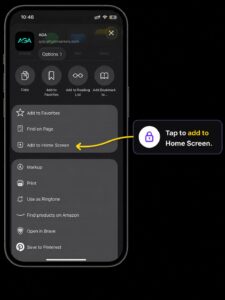
Add to Home Screen option in the iOS share sheet to install the AGA web app
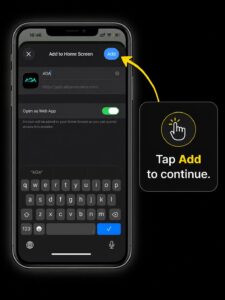
Step 5: Confirm the Details and Tap “Add”
A confirmation screen titled “Add to Home Screen” appears, showing the AGA icon, the name AGA, and the address app.allgamearena.com. Leave the “Open as Web App” toggle switched on – this is what makes AGA launch full screen like a native app instead of opening in a browser tab. Then tap Add in the top-right corner.
That’s it -the AGA iOS app now lives on your home screen like any other app.
Step 6: Open AGA from Your Home Screen
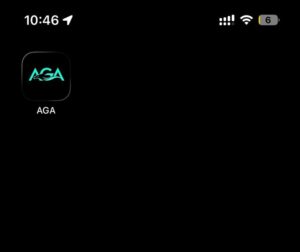
Tap the new AGA icon. It launches full screen with no Safari bars – the same experience as a native app. You’ll land directly on the registration screen, ready to create your account.
The whole process takes under 60 seconds.
Creating Your Account in the AGA iOS App
After you install AGA on iOS, setting up your gaming profile takes under a minute. However, one specific step dictates whether you can successfully withdraw funds later:
Important Identity Verification: Your registered Full Name must perfectly match the legal name tied to your Cash App or Chime accounts. Discrepancies will result in security delays during the identity verification phase of cashouts.
Use this checklist during your initial enrollment:
-
Full Name: Must match your banking/payout profile exactly.
-
Username: Your unique public identifier across the All Game Arena ecosystem.
-
Password: Use a robust, alphanumeric string to protect your real-money wallet.
-
Contact Fields: Provide a valid email address and mobile phone number for account recovery and real-time withdrawal receipts.
-
Referral Code (Optional): Must be entered during registration. This cannot be retroactively applied to your account, so ensure you input any friend or promotional referral strings before clicking Create Account.
Don’t skip this: Referral codes can only be entered at registration – they can’t be added later. If a friend gave you a code, enter it before tapping Create Account so you both get the first top-up bonus.
What Is All Game Arena (AGA)?
If you are new to the platform, All Game Arena (AGA) functions as a secure, self-serve financial gateway and launch portal for popular US sweepstakes platforms. To read more about the application, please read this article.
Historically, sweepstakes players had to message unverified third-party agents over Facebook or Telegram to fund their accounts or process payouts. AGA replaces this decentralized model with an automated 24/7 dashboard, granting players autonomous control over their funds.
A few things worth knowing:
- AGA is a payment gateway, not a game operator. It doesn’t host the games – it manages your wallet, top-ups, and payouts across external platforms.
- 100% free. No sign-up fees, no deposit fees, no withdrawal fees.
- 24/7 self-serve withdrawals. No agents, no approval queues.
- Cross-platform. One account works on AGA for iOS, Android, and the web, so your balance follows you between devices.
Supported games currently include Juwa, Juwa 2.0, Fire Kirin, Game Vault, Milky Way, and Orion Stars, with more added regularly.
Inside the AGA iOS App: What You Get
Once you log in, the Home screen puts everything one tap away:
- Wallet Balance card with a privacy toggle, plus Withdraw and Top-Up buttons
- Quick Actions grid for Wallet Top-Up, Game Top-Up, Withdraw, Support, Promo Code, and Refer & Earn
- Games tab to browse titles and request game login credentials with one tap
- Announcements feed where official promo codes are posted – check it every few days
- 24/7 Support via the green headset icon on nearly every screen
AGA iOS Web App vs Native App: What’s Different?
Some users worry that a web app is a downgrade. Here’s the honest comparison for daily use:
| Feature | Native App Store App | AGA Web App on iOS |
|---|---|---|
| Home screen icon | Yes | Yes |
| Full screen, no browser bars | Yes | Yes |
| App Store needed | Yes | No |
| Storage used | 50–200 MB typical | Minimal |
| Updates | Manual or auto | Automatic, always current |
| Certificate / trust step | No | No |
| Works offline | Sometimes | No – needs internet |
The only real trade-off is offline access. Since AGA manages a live wallet, you’d need a connection anyway. In every way that matters day to day, the AGA iOS app experience is indistinguishable from a native install.
Troubleshooting AGA iOS App Install Issues
Even with a simple setup, a few hiccups can happen. Each one has an easy fix.
“Add to Home Screen” isn’t showing up. You’re not in Safari. Chrome and other iOS browsers can’t install web apps properly. Open Safari, go to app.allgamearena.com, and try again.
The icon opens in a browser tab instead of full screen. The shortcut was added from a non-Safari browser. Delete the icon and redo the steps in Safari.
The page won’t load. A web app needs an active internet connection. Toggle between Wi-Fi and mobile data and reload.
I deleted the icon – is my account gone? No. Your account and balance live server-side, tied to your login rather than your device. Re-add the web app from Safari, log in, and everything is exactly as you left it.
I got a new iPhone. Same answer: visit app.allgamearena.com in Safari on the new phone, add to home screen, and log in. Your wallet and history carry over instantly.
Is it Safe to Download and Install AGA on iOS?
Yes. Operating through a PWA layer ensures that AGA inherently inherits Apple’s strict native Safari security sandboxing protocols. Security enhancements include:
Mandatory End-to-End Encryption: All operational transactions are locked behind high-grade HTTPS layers, eliminating the risk of man-in-the-middle data interception.
Advanced Content Security Policies (CSP): The architecture deploys strict CSP parameters to prevent cross-site scripting (XSS) and unauthorized code injections.
Isolated Wallet Infrastructure: Your central financial balance is fully partitioned from the external game servers (like Juwa or Fire Kirin). Even if an external game server encounters downtime, your central core wallet remains completely insulated and secure.
The single best thing you can do is use a long, unique password you don’t reuse anywhere else. This account holds real money.
Frequently Asked Questions
Is there an AGA app for iPhone?
Not on the App Store. The official AGA iOS app is the web app at app.allgamearena.com, installed to your home screen through Safari.
Will AGA release a native iOS app later?
There’s no native iOS app currently available. The web app is the official, fully supported iPhone and iPad experience—and because it updates automatically, you’re always on the latest version.
Is AGA free on iPhone?
Completely free. No sign-up, deposit, or withdrawal fees.
Do I need to jailbreak my iPhone?
No. The AGA iOS app works on all standard iPhones and iPads running iOS 13 or later.
Does it work on iPad?
Yes. The steps are identical, except the Share button is in the top-right corner instead of the bottom of the screen. The interface adapts nicely to the larger display.
How do I contact support?
Tap the green headset icon in the app (24/7), or email support@allgamearena.com.
Final Thoughts Before You Download AGA App on iOS
There’s no AGA app to hunt down on the App Store – and once you’ve done the install, you’ll understand why nobody misses it. To recap: open Safari, visit app.allgamearena.com, tap Share, tap Add to Home Screen, tap Add. In under 60 seconds, the AGA iOS app sits on your home screen, launching full screen like any native app.
From there, one master wallet covers every supported game – Juwa, Fire Kirin, Game Vault, Milky Way, Orion Stars, and more — with 24/7 self-serve top-ups and withdrawals, no agents, and no waiting.
A note on responsible play: These are real-money sweepstakes games. Set a budget before you start, never chase losses, and treat your wallet balance as entertainment spending rather than savings.